
One Codex GitHub App
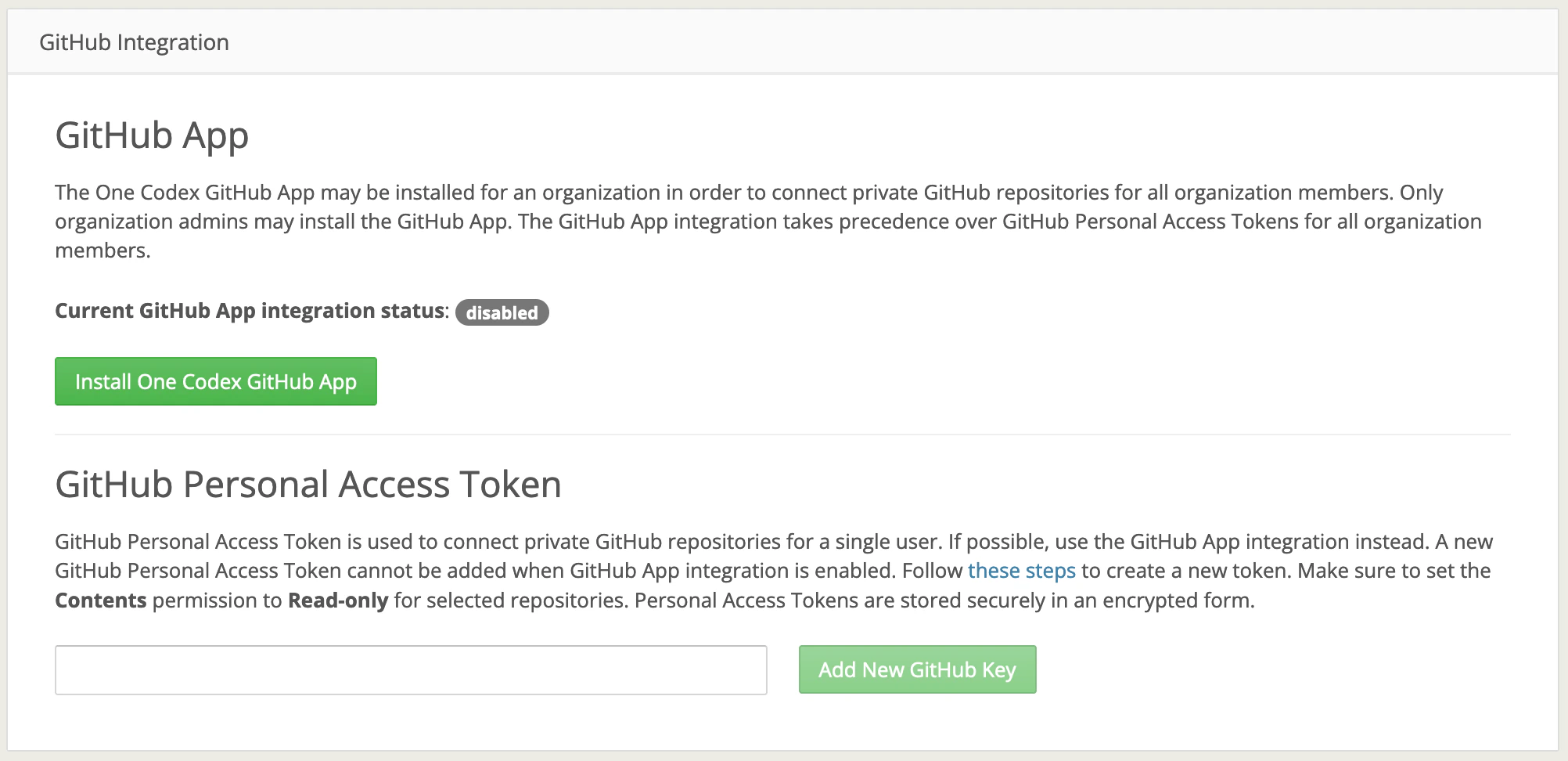
One Codex has developed a GitHub app, which an organization owner or admin can install on behalf of all organization members. If installed, the GitHub app takes precedence over individual Personal Access Tokens. Clicking “Install One Codex GitHub App” takes you to GitHub. Once logged in, you can choose which GitHub organization(s) you wish to install the app for. Once you’ve selected you organization, you will be able to choose whether to provide access to all repositories, or only selected repositories.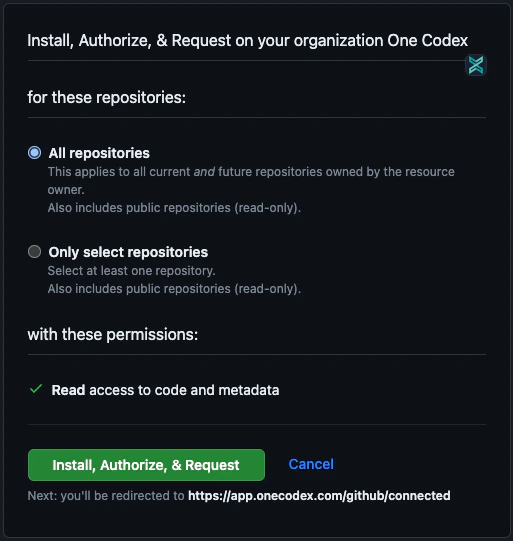
GitHub Personal Access Token
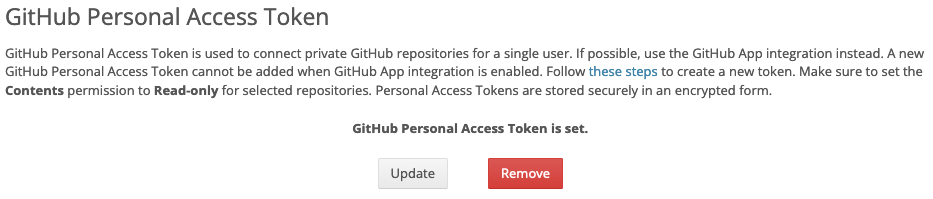
If you don’t want to connect GitHub for all members in your One Codex organization, you can instead choose to connect via your own Personal Access Token. Note that if the GitHub integration app is enabled, you will not be able to provide a Personal Access Token, as the app integration takes precedence. To generate a Personal Access Token, you will need to follow these GitHub steps. Use a fine-grained token, and fill in GitHub’s token form as follows:Contents: Read-only is the only permission One Codex needs. GitHub automatically adds Metadata: Read-only alongside it, which is expected. Leave every other permission set to “No access”, and don’t grant any write permissions.
Once the token is generated, copy it and paste it into the GitHub Personal Access Token field on your One Codex settings page. Tokens are stored encrypted, and GitHub will only show you the token value once.
Using your repository in a workflow
When a workflow has a Git repository configured, the repository is cloned into the workflow’s working directory before your script runs. The name of that directory is available as the$REPOSITORY_DIR environment variable, e.g. my-pipeline for https://github.com/my-org/my-pipeline:
You do not need to clean up the cloned repository. It is excluded from the files captured as workflow outputs, so it will not show up in your results.
Disconnecting From GitHub
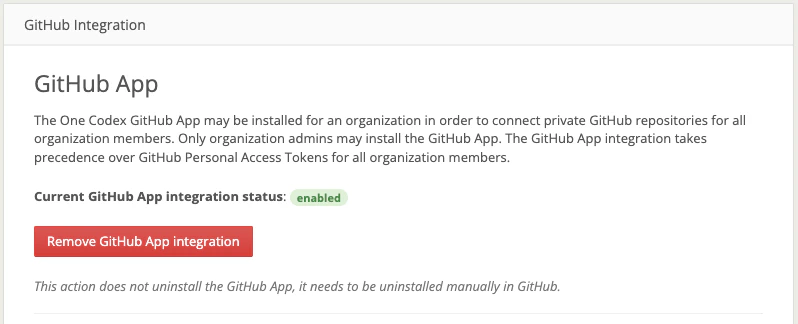
If you have connected via the GitHub app, returning to your settings page, you will see a button to remove the GitHub App integration. Note that this does not uninstall the app from GitHub. You can uninstall from GitHub by visiting your GitHub installations page.